 Article about Android Auto
Switching to Android Auto Means Rethinking Your Driving Routine
AppCompare
Switching to Android Auto is not like replacing one navigation app with another. It changes where your attention goes, how you reach familiar tools, and what you expect the car itself to do. The payoff can be a calmer drive, with maps, calls, messages, and audio gathered on the car’s display. But that payoff depends on a compatible car or receiver, a suitable Android phone, and a willingness to learn a more restricted, driving-focused interface.
The best reason to consider the move is not that it has more features than your current setup. It is that it can reduce the small decisions that pile up on a trip: which screen to open, how to start directions, where to pause a podcast, or how to answer a call without reaching for the phone. If your present routine already handles those jobs safely and reliably, switching may be more disruption than improvement.

Android Auto
Google LLC · 4.1 · Free · Android
The real transition is a change in driving habits
Why make the switch?
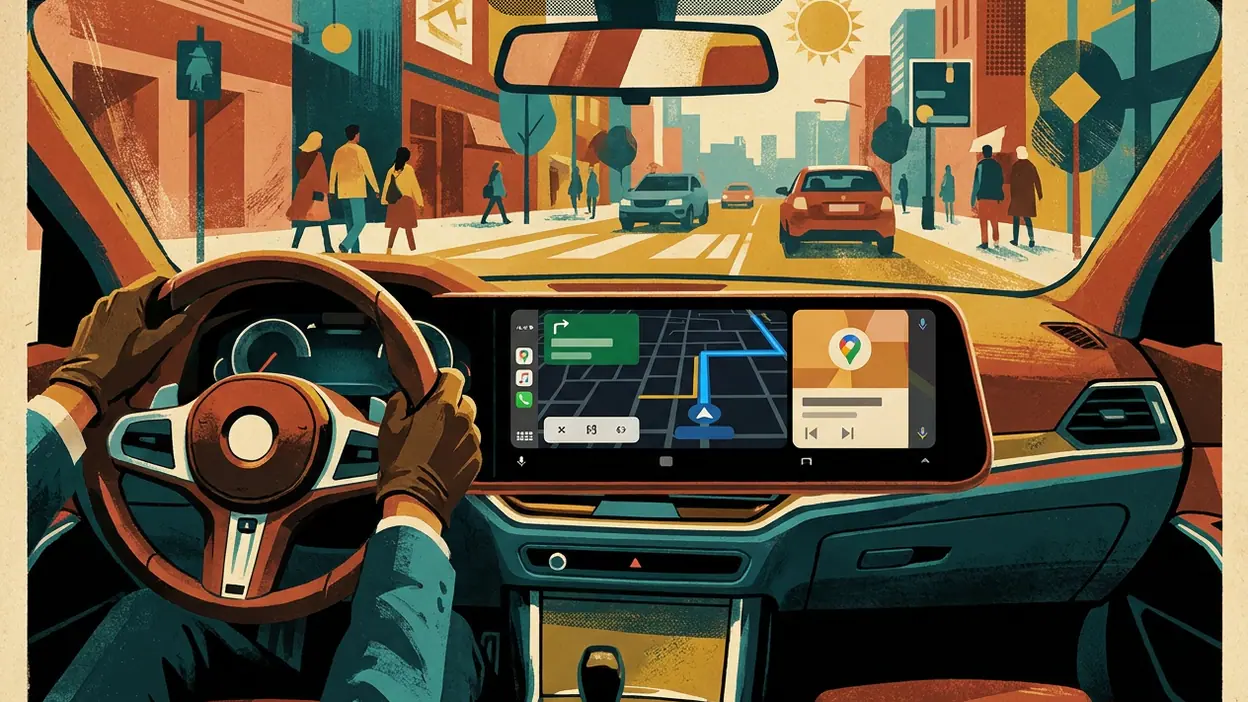
Android Auto is most persuasive for drivers whose current system is fragmented. Perhaps navigation lives on the phone, music runs through the car’s stereo, and calls interrupt both. When the car supports Android Auto, supported apps can appear in an interface designed for use while driving. Larger controls and voice interaction make common tasks easier to reach without treating the phone as the dashboard.
That distinction matters if you are moving from using Google Maps directly on a phone mount. The maps may be familiar, but the experience is not identical: you are interacting through the car’s screen, with Android Auto shaping how navigation and other supported apps are presented. A map on a dashboard can be easier to glance at than a phone placed low or off to one side. Yet the car display is only useful if its position, brightness, and touch response work for you.
Some drivers arrive from a built-in infotainment system rather than a phone-based setup. In that case, the question is whether Android Auto makes routine tasks feel more consistent, not whether it replaces every vehicle feature. The car’s own controls and information may remain important, and the exact division between the vehicle interface and Android Auto varies by model.
The first habit that changes
The first adjustment is leaving the phone alone once the trip begins. Instead of tapping around on the handset, you start with the car’s display or use voice controls for supported tasks. That sounds minor, but it changes the rhythm of a drive. You choose a destination, queue audio, and handle a call before moving, then try to keep your hands and attention on driving.
This is also where expectations need to be realistic. Android Auto does not make distraction harmless, and voice commands are not magic. A noisy cabin, unclear speech, or an unfamiliar contact name can turn a quick request into a frustrating exchange. I would treat voice as a useful option, not a promise that every task can be completed hands-free.
Setup is not the same as migration
There is no universal transfer process that moves a driver’s old routine into Android Auto. You should not assume that settings, playlists, navigation preferences, or app layouts will import from another system. Instead, check the basics independently: whether your vehicle or aftermarket receiver supports Android Auto, whether your Android phone meets the current requirements, and whether the apps you rely on are available and supported in the car interface.
Connection details depend on the vehicle and phone. Some setups use a USB cable; some support wireless connection. Consult your vehicle’s manual and the current Android Auto guidance for your particular phone and car rather than buying accessories on guesswork. A cable that charges a phone is not necessarily the right data cable, and wireless support is not something to presume just because the car has Bluetooth.
Before the first drive, install or update the apps you intend to use, grant only the permissions you are comfortable with, and test the connection while parked. Confirm that navigation audio is audible, calls route correctly, and your usual audio app appears as expected. It is worth checking whether the car’s steering-wheel controls work with the tasks you use most. These are practical checks, not a migration wizard; your accounts and app data remain a matter of each individual service.
The relearning cost
The learning curve is modest, but it is real. You have to understand how to return to the home screen, switch between supported apps, dismiss or respond to prompts, and handle a connection failure without improvising at speed. The interface also limits what apps can do on the car display. That restraint is part of the design, but it can feel like missing functionality if you expect the full phone app to appear unchanged.
Drivers used to a physical knob or a carmaker’s menu system may need time to learn where Android Auto fits among the vehicle’s own controls. Drivers coming from a phone mount may need to stop reaching for the phone out of habit. Neither change is difficult on its own; the important part is practising while parked, not discovering the controls in moving traffic.
What improves right away
When the connection is dependable, the immediate gain is continuity. Directions, calls, messages, and supported audio can be handled from a consistent car-focused interface instead of bouncing between the phone and the stereo. A trip that begins with navigation and continues with music or a call feels less like a collection of unrelated actions.
The improvement is especially concrete on regular commutes. You can establish a routine: connect, set directions if needed, choose audio, then leave the handset alone. Familiar tools presented in a predictable place can reduce the urge to fiddle. That is a small convenience repeated often, which is why Android Auto can become sticky for people whose car and phone work well together.
It also gives drivers a reason to reconsider a phone mount. For some, the larger built-in screen is easier to see and keeps the phone out of the main field of attention. For others, the display may be too low, too small, or awkwardly placed. The hardware determines how much of the software’s promise reaches the road.
What you may lose
What you give up is some freedom to use the phone exactly as before. Android Auto is not a full mirror of every Android app, and unsupported tasks may still require the vehicle’s system or a parked phone. If your current setup depends on a particular app or a specific interaction that is not available on the car display, the new arrangement can feel narrower.
You may also lose the simplicity of a setup that already works. A phone mount, Bluetooth audio, and Google Maps can be a perfectly serviceable combination. Android Auto adds a compatibility layer and another point of failure: the car, phone, cable or wireless link, and software all need to cooperate. A connection problem before a familiar route can make the old method look appealing very quickly.
Nor should you expect the interface to erase differences between services. Your preferred navigation app, music service, and messaging tools still have their own settings and account requirements. The car display gathers supported experiences; it does not make every app behave identically or guarantee that preferences will follow you from an existing system.
Keep both routines available at first
A parallel-use period is the least stressful way to decide. Keep your existing phone mount or know how to use the car’s built-in system, but test Android Auto on familiar routes while parked before setting off. Use it for a week of ordinary trips, not just a single novelty drive. Notice whether connection problems recur, whether the display is easier to glance at, and whether you actually reach for the phone less.
Do not run competing navigation directions at the same time. If you test alternatives, choose one before moving and silence the other so conflicting prompts do not add confusion. Keep a simple fallback in mind for a failed connection: use the vehicle’s normal controls or pull over safely before changing anything on the phone. Parallel use should help you compare routines, not invite multitasking.
This method also makes the decision more evidence-based. Track the friction you can name: repeated reconnecting, an awkward screen location, missing app support, or fewer phone touches. Balance that against concrete gains, such as clearer directions or easier audio control. “It feels modern” is a weak reason to switch; a routine that is measurably less distracting is stronger.
When staying put makes sense
Stay with your current setup if your car is incompatible, if your phone does not meet the requirements, or if the connection proves unreliable after reasonable troubleshooting. Also stay if the interface is hard to see from your driving position, your essential apps are not supported, or you rely on vehicle features that Android Auto does not replace.
There is little value in changing systems just to have a larger screen. If a well-positioned phone mount already gives you clear navigation and you can manage audio safely, Android Auto may offer convenience without changing the outcome of your drive. Likewise, if you dislike voice interaction and the car’s touch display is difficult to use, the new habit may not suit you.
The best candidate for switching
The strongest candidate is an Android phone owner with a compatible car who regularly uses navigation, calls, and audio on the road, but currently handles them across separate screens. This driver has a repeatable routine to improve and enough common trips to judge the difference. They are also willing to verify app support and connection reliability before relying on the system for a long journey.
Someone who mainly wants a universal remote-style solution, or expects one app to control every feature in the car, is looking for the wrong kind of replacement. Android Auto is a driving interface for supported phone experiences, not a universal control layer for the vehicle. Knowing that boundary prevents disappointment more effectively than any feature list.
Switch or stay?
Switch if your car and phone are confirmed compatible, the apps you use most are supported, and a short trial makes routine driving simpler without adding connection headaches. Start with familiar routes, test the controls while parked, and judge the result by what changes in your hands and attention, not by how polished the screen looks.
Stay put if the current arrangement is already safe and dependable, or if compatibility and reliability remain uncertain. The right upgrade is the one that removes a repeat annoyance without creating a new routine to manage. For the right driver, Android Auto earns its place by making navigation, communication, and audio feel like parts of one deliberate driving routine. For everyone else, keeping a setup that already works is a sensible verdict, not a failure to keep up.